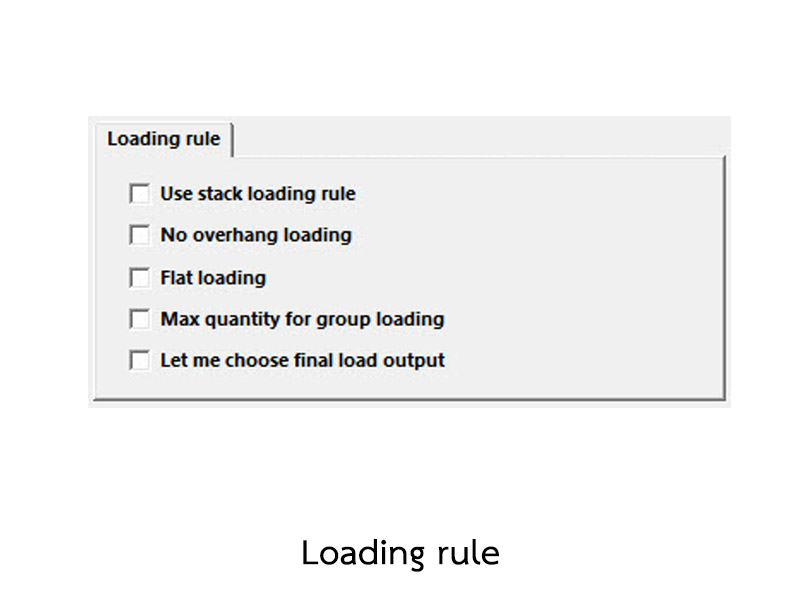
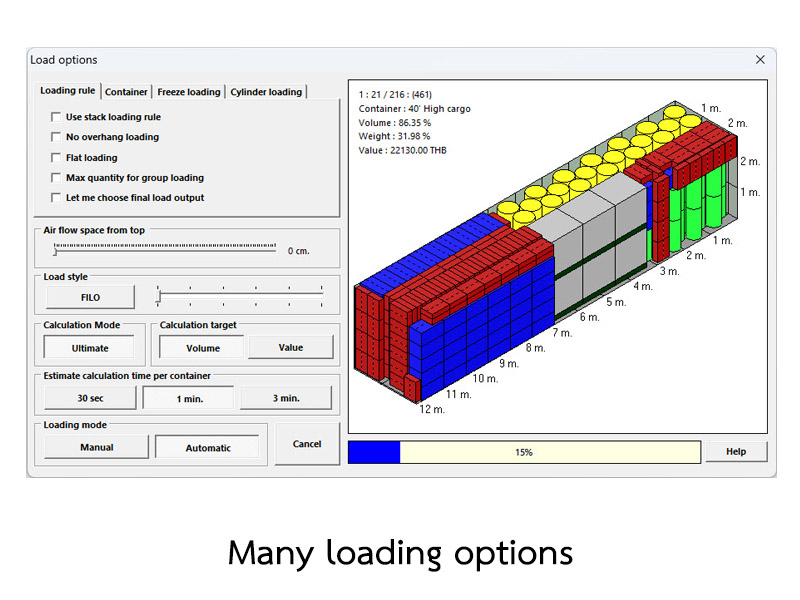
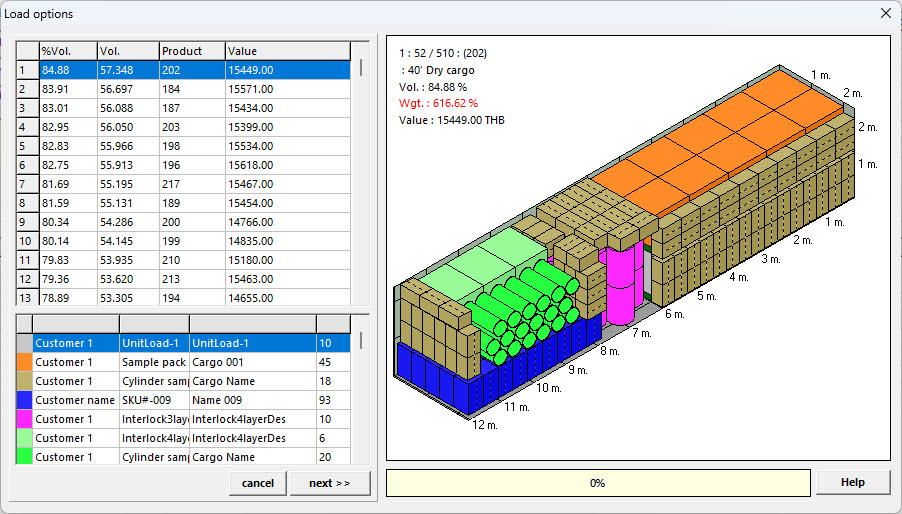
Let me choose final load output allow user to choose best loading style from top style loading list.

|
|
|
Find best container use to find best container in container list of shipment.
Quantity/Freight/Efficiency use to set find best container mode (use with Find best container option).
Quantity choose container with maximum loaded volume first
Freight choose container with minimum loaded cargo freight first (Container freight per loaded cargo volume)
Efficiency choose container with maximum loaded efficiency first.
Auto container quantity use to allow/not allow software to add container quanity by automatic (this option will enable if use Find best container option).
Remove conflict cargo from unusable space use to allow/not allow to remove conflict cargo from unusable space in container.
limit loaded cargo to container weight capacity use to limit loaded cargo quantity to container weight capacity.
|
|

|
|
|
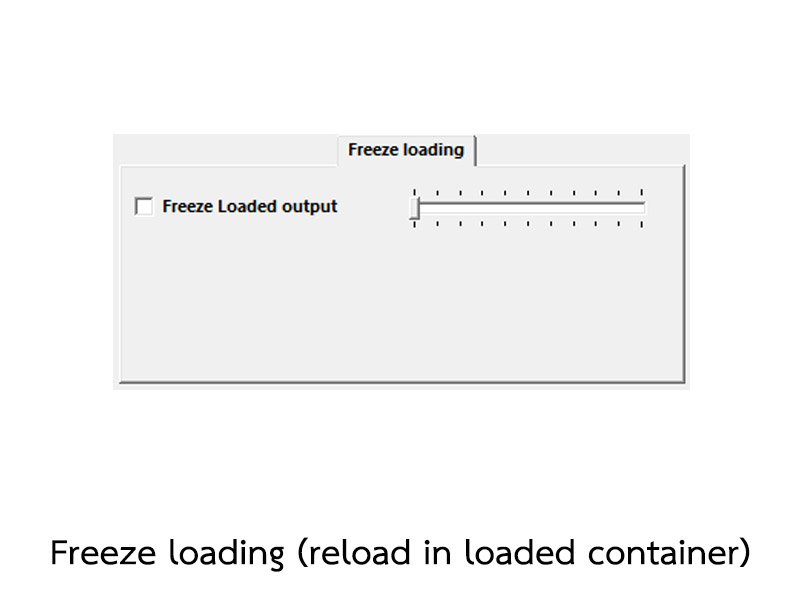
Use freeze loading use to calculate with freeze loading (automatic enable with compatible shipment to freeze loading only).
Cross deep level use to set cross deep to loaded cargo in container.
|
|

|
|
|
For cylinder cargo you can limit cargo orientation with square or intersect pattern.
|
|

|
|

|
|
|
Allow to use corner space use to allow to load cargo in corner space of intersect patten.
Use bottom orientation use to place cylinder cargo with same orientation of base cargo.
|
|

|
|
|
|
|
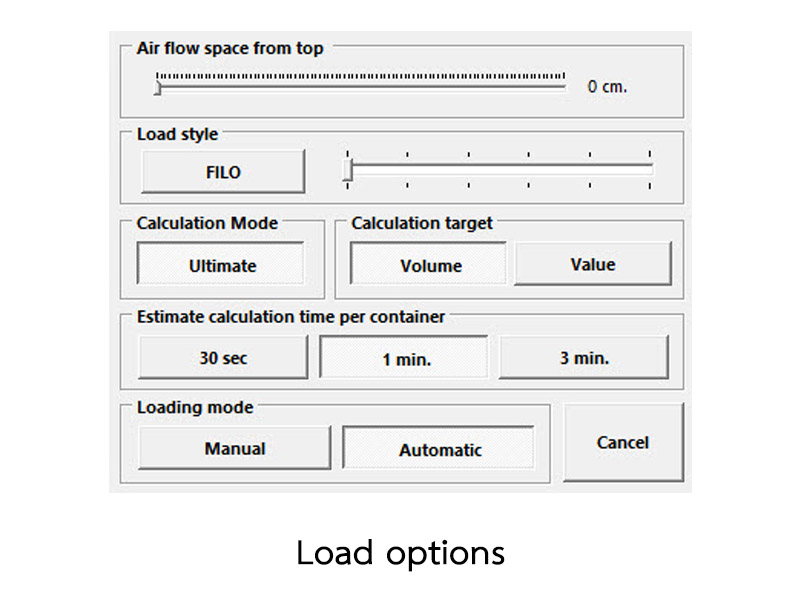
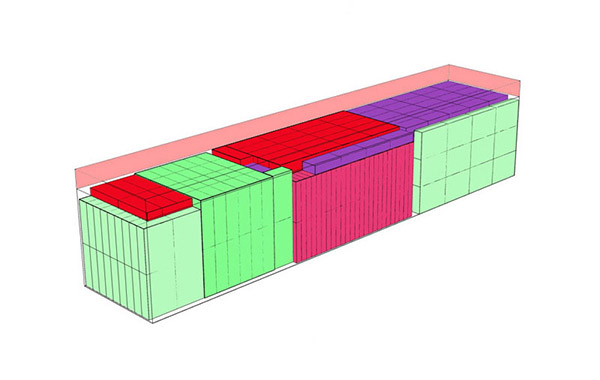
Air flow space from top define limit loading space from top for air flow space (can use as limit loading height).
|
|

|
|

|
|
|
Load style use to choose FILO (First In Last Out) loading mode FILO use to allow to calculate by use FILO mode
Cross deep level use to set cross deep to previous loaded cargo in container.
Note : FILO option can use with more than one cargo in shipment only
|
|

|
|
|
Calculation mode use to choose ultimate loading mode
Ultimate use to allow to calculate by ultimate mode
Note : Ultimate mode will not use with some load option (for sample Overhang loading) and Ultimate mode will use more calculation time.
|
|

|
|
|
Calculation target use to choose target of calculation between Loaded volume or loaded value
Volume use to set calculation mode to loaded volume
Value use to set calculation mode to loaded value
Note : for value mode, cargo in shipment must t o have price.
|
|

|
|
|
Estimate calculation time per container used to define maximum calculation time.
|
|

|
|
|
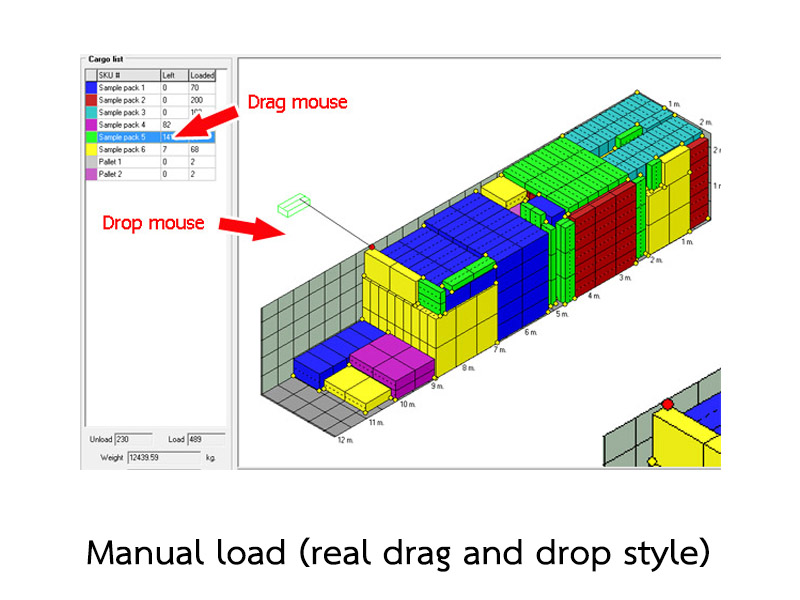
Loading mode is used to define calculation mode between Manual mode (Design loading by user) or Automatic mode (Loading by computer).
LOAD button use to to start loading calculation.
|
|

|
|
|
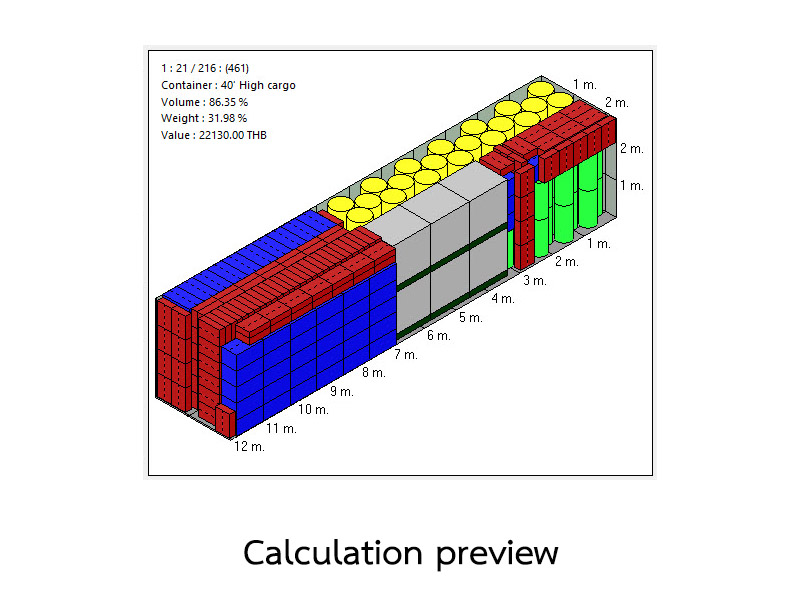
Load preview use to show picture of maximum efficiency on calculation process.
|
|
Manual load (drag and drop) |

|
|
|
New style manual load with drag and drop. It's very easy to design and edit any load style as you need.
|
|

|
|
|
Options to help you manage your loading style as you need.
|
|

|
|

|
|
| Top |